

For years, “antivirus makes my PC slow” was a completely fair complaint. Old-school security suites loved heavy background scans, constant pop-ups, and full-system checks that kicked off at the worst possible time.
In 2026, that fear is often outdated — but not always wrong.
Independent labs still measure noticeable differences between products, especially on budget laptops, older desktops, or machines with limited RAM. The real question isn’t “Does antivirus slow PCs?” It’s: How much, when, and what can you do about it?
AV-TEST scores explained
See our latest antivirus reviews
The short answer: antivirus can slow PCs — but modern suites are smarter about it
Modern antivirus products try to stay invisible during normal work and shift heavier tasks (like deep scans) to idle time. But “modern” doesn’t mean “equal.”
One of the clearest ways to see the gap is third-party lab performance testing. AV-Comparatives runs a dedicated Performance Test that measures the system impact of security products across common tasks and reports an “Impact Score,” noting that results can vary by system and usage.
In its September 2025 Performance Test, AV-Comparatives published a ranked set of impact scores showing meaningful spread between products in the same test environment.
And AV-TEST, another well-known lab, includes Performance as one of its three core scoring categories (Protection, Performance, Usability) in Windows consumer testing.
Bottom line: performance impact is real, measurable, and product-dependent — especially on lower-end hardware.
What “performance impact” actually means (it’s not just CPU %)
When people say “antivirus slows my PC,” they usually mean one (or more) of these:
- Slower app launches (programs take longer to open)
- Laggy browsing (page loads feel sluggish)
- File copies/downloads feel slower (especially large archives)
- Random stutters during gaming (background scans + updates at bad times)
- Boot time increases (startup services and background agents)
Performance testing from labs like AV-Comparatives is designed around exactly these real-world tasks. AV-Comparatives also notes that its testing includes cloud features/real-world connectivity and uses a representative “low-end” Windows 11 test machine in at least some performance test runs (helpful because low-end systems show slowdowns more clearly).
Background scanning: the #1 reason people feel slowdowns
Modern antivirus runs multiple layers:
- Real-time (on-access) scanning: checks files as they’re opened/executed
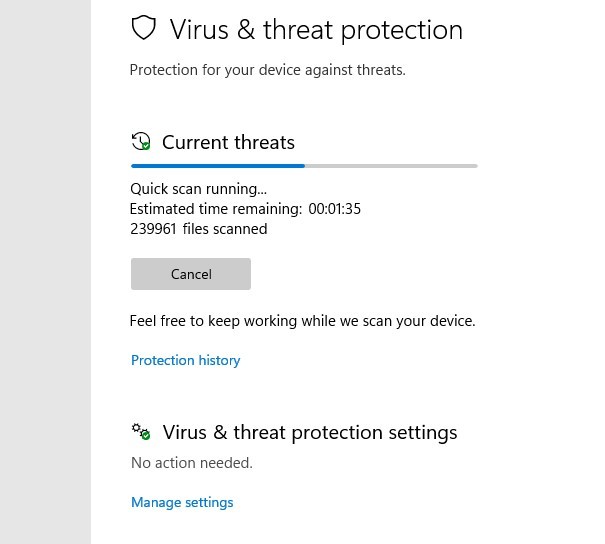
- Scheduled scans: full or quick scans at set times
- Behavior monitoring: watches processes for suspicious activity
- Web protection: monitors risky sites, downloads, and scripts
Most “I lost FPS” complaints come from scheduled scans or silent background tasks (definition updates, optimization, telemetry uploads) colliding with what you’re doing.
Quick reality check
If your PC only feels slow sometimes (not always), it’s probably not “antivirus is heavy” — it’s antivirus doing a heavy job at the wrong time.
Gaming mode claims: useful, but don’t treat it like magic
Many antivirus products include a “Game Mode,” “Silent Mode,” or “Do Not Disturb” feature. The promise: pause notifications, postpone scans, and stop background tasks while you game or go full-screen.
For example, Norton documents that Silent Mode / Quiet Mode are designed to suspend background tasks to improve performance.
This can help a lot — if the product actually delays scans/updates instead of just hiding pop-ups.
What gaming mode does well
- Stops interruptions (pop-ups, “action required” nags)
- Prevents surprise scans mid-match
- Reduces background CPU spikes during full-screen apps
What gaming mode does not do
- It doesn’t turn off real-time protection (and shouldn’t)
- It won’t fix an already underpowered CPU/GPU
- It won’t fix a bloated system (startup junk, low disk space, overheating)
Tip: If your antivirus has a gaming mode, enable it — but also set your scheduled scan to a time you’re truly away (like weekday mornings).
Why some PCs still “feel” slower in 2026
Even good antivirus can feel heavy when:
- You’re on a dual-core/low-power CPU laptop
- You have 8 GB RAM or less and many tabs/apps open
- Your storage is nearly full (especially SSDs over ~85% used)
- You do lots of large file work (video editing, archives, dev builds)
- You have multiple security layers fighting each other (e.g., two real-time AV engines)
Also, note that different products show different “system impact” outcomes in lab comparisons — and AV-Comparatives’ own consumer summary highlights that some products demonstrated lower impact than others in its overall performance focus.
How to test performance impact on your own PC (in 10 minutes)
You don’t need a lab to sanity-check your setup.
Step 1: baseline your PC
- Reboot
- Wait 2 minutes
- Open Task Manager → Performance
- Note CPU/RAM usage at idle
Step 2: test three common tasks
- Launch your browser + 10 tabs
- Copy a 2–5 GB folder (or download a large file)
- Launch a game or a heavy app
Step 3: watch for the “antivirus fingerprints”
In Task Manager, look for:
- High CPU spikes from AV processes during file copy
- Disk usage pegged at 100% during launches
- Background tasks kicking in right when you start gaming
Step 4: isolate the cause
- Temporarily disable scheduled scanning (not real-time protection)
- Turn on gaming/silent mode
- Exclude trusted, high-churn folders (more on that next)
If that immediately fixes stutters, you’ve found the real cause: timing + scanning behavior.
Settings that reduce slowdowns without weakening security
Use these tweaks first before switching products:
1) Move scheduled scans to true idle time
- Pick a time you’re never using the PC (weekday mornings work for many people)
2) Add exclusions carefully (high-impact folders only)
Good candidates:
- Game install folders (Steam library)
- Video project cache folders (Premiere/DaVinci cache)
- Large dev build folders (node_modules, build outputs)
Avoid excluding: Downloads, Temp folders, email attachments, or anything you frequently run from the web.
3) Keep only one real-time antivirus engine
If you stack multiple tools with real-time scanning, they can multiply the slowdown (and sometimes interfere with detection).
4) Use Windows features smartly
If you’re mostly worried about “drive-by” app installs, Windows security layers can help — but don’t assume that automatically replaces a full suite for everyone. (Your needs vary based on browsing habits, downloads, and exposure.)
Should you switch antivirus because of performance fears?
Switching makes sense if:
- Your PC is older/lower-end and feels slow even after scan scheduling + gaming mode
- Your current product ranks poorly in independent performance comparisons
- You see constant disk pegging, boot slowdowns, or stutters that track AV activity
If you want a quick starting point:
- Read your preferred lab methodology and results summaries (our AV-Test article is a good companion alongside lab scoring categories).
- Compare options on our Antivirus Reviews hub.
Conclusion: does antivirus still slow PCs in 2026?
Sometimes — but usually less than people expect, and often only at the wrong moments.
Performance impact today is mostly about:
- how the product handles background tasks,
- how it schedules scans/updates,
- and whether it respects full-screen workloads.
With the right settings (and the right product), you can get strong protection without that “my PC is dragging” feeling — even on a modest machine.