
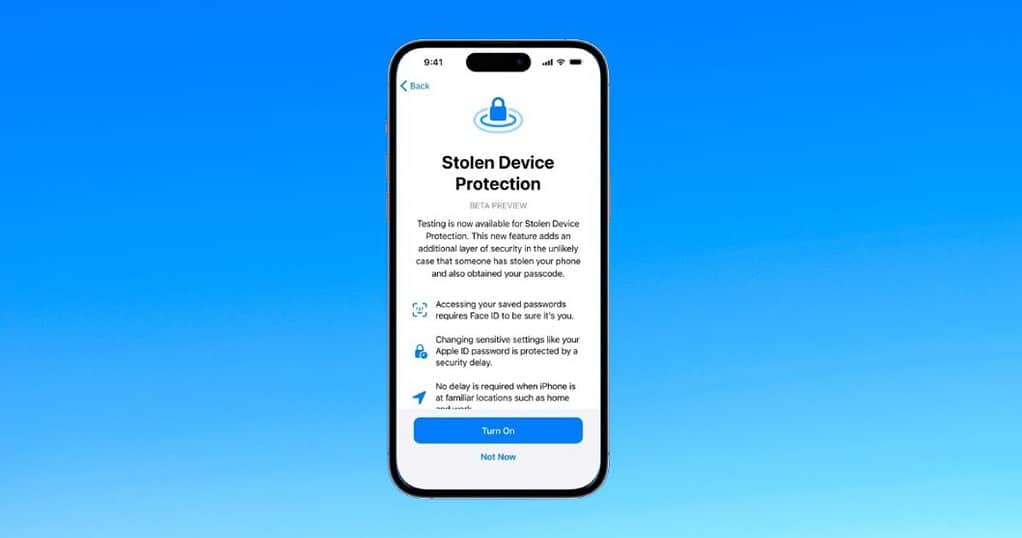
Travel is when iPhone security gets tested in the real world: crowded transit, unfamiliar Wi-Fi, quick check-ins, and more opportunities for shoulder-surfing your passcode. Apple now offers two powerful (and very different) defenses that are worth setting up before you leave: iOS Stolen Device Protection and Lockdown Mode.
This guide walks through what each feature actually does, who should use it, and a traveler-friendly setup that won’t ruin your trip.
Part 1: Stolen Device Protection (SDP) — the “thief knows your passcode” fix
Stolen Device Protection is designed for a common real-world theft pattern: someone watches you enter your passcode, steals the phone, then tries to take over your Apple Account and lock you out. With SDP enabled, Apple adds extra requirements for sensitive actions—especially when you’re away from familiar locations (like home or work).
What changes when SDP is on
- Biometrics become mandatory for certain sensitive actions—Face ID/Touch ID is required, with no passcode fallback in some cases.
- Security Delay for high-impact changes: you authenticate with Face ID/Touch ID, wait one hour, then authenticate again before the change completes.
- This delay is meant to give you time to use Find My and put the device in Lost Mode or otherwise protect your account.
Traveler takeaway
If your phone gets stolen at an airport bar right after you unlocked it, SDP makes it much harder for a thief to change your Apple ID password, add a new Face ID, disable security features, or fully take over the device—especially once they leave a “familiar” location.
How to enable Stolen Device Protection (recommended for most travelers)
Do this 24–48 hours before you travel so iOS has time to learn your familiar locations and you can test it locally.
Prerequisites (quick checklist)
- Face ID or Touch ID configured
- A device passcode enabled
- Two-factor authentication on your Apple Account
- “Significant Locations” / location services needed for iOS to know what’s “familiar”
Turn it on
- Open Settings
- Tap Face ID & Passcode (or Touch ID & Passcode)
- Scroll to Stolen Device Protection
- Turn it on, then choose a mode:
- Away from Familiar Locations (less disruptive; security delay mostly triggers when you’re away)
- Always (stronger; security delay requirements apply more broadly)
Which mode should travelers use?
- Most people: Away from Familiar Locations. It boosts protection when you’re actually traveling without constantly slowing you down at home.
- High theft risk situations: Consider Always if you’re frequently in crowded nightlife areas, large events, or you’ve previously had a device stolen.
Important “don’t get stuck” warning
SDP can be inconvenient if you need to make major Apple ID/security changes while you’re abroad, because the one-hour Security Delay can trigger when you’re away from familiar locations. Plan ahead: make critical account changes (password updates, device changes, etc.) before you leave.
Travel hardening checklist (the 10-minute version)
Stolen Device Protection is strongest when paired with a few “travel reality” settings:
1) Use an alphanumeric passcode (not 4–6 digits)
Go to Settings → Face ID & Passcode → Change Passcode and pick Custom Alphanumeric Code. This reduces the risk from quick observation attacks in crowds.
2) Lock down Control Center when locked
In Settings, limit what’s accessible on the lock screen (like Control Center). The goal: make it harder for someone to toggle Airplane Mode or disrupt tracking right after a snatch-and-run.
3) Confirm Find My is on (and you know how to use it)
SDP is meant to buy you time—use that time to put the phone in Lost Mode quickly. Apple specifically notes Security Delay helps give you time to take action with Find My.
4) Keep a recovery plan off the phone
- Store Apple Account recovery info somewhere not on the iPhone (password manager on another device, printed copy in luggage, etc.).
- Make sure a trusted phone number/device can receive 2FA codes.
Part 2: Lockdown Mode — powerful, but only for specific travelers
Lockdown Mode is Apple’s extreme hardening option for people who may be targeted by sophisticated attacks (think mercenary spyware, targeted harassment, or high-risk work). It dramatically reduces attack surface by restricting certain features. Apple positions it for a “very small” set of users facing exceptional threats.
Who should consider Lockdown Mode while traveling?
- Journalists, activists, diplomats, political staff, or anyone who expects targeted surveillance
- People traveling to places where device compromise is a known risk for their role
- Anyone specifically advised by a security team to enable it
If you’re a typical tourist or business traveler, Stolen Device Protection + good passcode hygiene is usually the better first step.
How to enable Lockdown Mode
- Open Settings
- Tap Privacy & Security
- Scroll to Lockdown Mode
- Tap Turn On Lockdown Mode, then Turn On & Restart
What to expect (real-world impact)
Lockdown Mode can break or degrade everyday conveniences—some websites behave oddly, certain attachments/preview features may be limited, and some incoming communications may be restricted. That’s the point: fewer “paths in” for advanced attacks. Apple and the EFF both emphasize it’s meant for high-risk users, not everyone.
A “traveler-friendly” configuration I recommend
Baseline (almost everyone)
- Enable Stolen Device Protection set to Away from Familiar Locations
- Switch to a Custom Alphanumeric passcode
- Verify Find My is enabled and you can sign in from another device
- Keep iOS updated before you depart
High-risk profile (select travelers)
- Everything in the baseline
- Enable Lockdown Mode for the duration of the trip, test critical apps first
- Carry a secondary device for banking/2FA if feasible (or ensure 2FA can be received without the stolen phone)
Quick “if my iPhone is stolen” playbook (travel edition)
- From another device, use Find My / iCloud to mark the phone as lost.
- Change passwords for any high-impact accounts that were signed in on the phone (email first, then banking).
- Monitor your Apple Account sign-in alerts and remove unknown devices.
Remember: SDP is designed to slow down account takeover attempts long enough for you to do steps like these.
Bottom line
Stolen Device Protection is a practical, traveler-friendly upgrade that protects against the most common iPhone theft escalation: passcode compromise plus rapid account takeover.
Lockdown Mode is excellent—when you truly need it—but it’s intentionally disruptive and best reserved for travelers who face targeted, sophisticated threats.